PROBLEM: “Windows Explorer Has Encountered a Problem and Needs to Close”
SOLUTION: Please follow the steps below:
· Go to start -> run and type "regsvr32
/u vsfilter.dll" (without the quotes)
· Now press enter. then nothing happened except a
message stating expired or something.
· Then Go to start again -> run and
type “ regsvr32 /u shmedia.dll”( without the quotes) and click OK.
That’s it. Hope
this helps…
PROBLEM: “Regedit” is disabled by the administrator
SOLUTION: To Enable
Registry Editor using Group Policy Editor Follow the steps below:
1. Click on the Start >
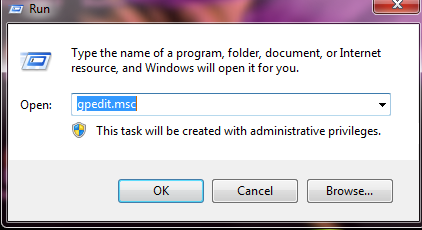
Run and type ”gpedit.msc” on the field (without “).
2. Navigate to:
- User Configuration
- Administrative
Templates-
- System.
3. On the option: Prevent
access to registry editing tools
4. Click Disabled and
click on the OK button to save settings.
5. Now Reboot your
computer.
That’s all…
PROBLEM: How to Increase Mozilla Firefox browsing speed?
SOLUTION:
It’s a very easy trick but the configuration is
mainly for Broadband Connection.
1.Type
"about:config" into the address bar and press enter.
2.Scroll down and look for
the following entries:
network.http.pipelining
network.http.proxy.pipelining
network.http.pipelining.maxrequests
Normally the browser will
make one request to a web page at a time. When you enable pipelining it will
make several at once, which really speeds up page loading.
3. Change the entries as follows:
Set "network.http.pipelining" to
"true"
Set "network.http.proxy.pipelining"
to "true"
Set
"network.http.pipelining.maxrequests" to some number like 30. This
means it will make 30 requests at once.
4. Lastly right-click
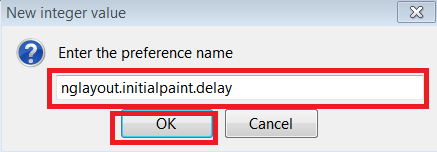
anywhere and select New, then Integer.
Name it
"nglayout.initialpaint.delay" and set its value to "0".
This value is the amount of time the browser waits before it acts on
information it recieves.
5. Now restart your
browser.
If you're using a broadband
connection, now pages will load much faster.But If you don’t have broadband
connection then follow the steps here
PROBLEM: How do I remove the Windows.old folder?
SOLUTION: Applies to Windows 7
If you install Windows 7 by performing a custom installation and don't format
the partition during the installation process, files that were used in your
previous version of Windows are stored in the Windows.old folder. The type of
files in this folder depends on your computer. After you’ve used Windows 7 for a while—for example, one or
two weeks—and you’re confident that
your files and settings are back to where you want them to be, you can safely
reclaim disk space by using Disk Cleanup to delete the Windows.old folder.
(1) Open Disk Cleanup by clicking
the Start button. In the search box, type Disk
Cleanup, and then, in the list of results, click Disk Cleanup.
If
you're prompted to choose a drive, click the drive you just installed Windows
on, and then click OK.
(2) In the Disk Cleanup dialog box,
on the Disk Cleanup tab, click Clean up
system files.
If
you're again prompted to choose a drive, click the drive you just installed
Windows on, and then click OK.
(3) Select the Previous Windows
installation(s) check box, and any other check boxes for the files you
want to delete, and then click OK.
(4) In the
message that appears, click Delete Files.
[N.B: Before you use Disk Cleanup,
make sure that all of your files and settings are in Windows 7 where you
expect them to be. Deleting the Windows.old folder can’t be undone]
PROBLEM: Windows Can’t Format My Pendrive/Memory Card And Showing That “Windows was unable to complete the format”
SOLUTION: Some people
will suggest you to use software to complete the task but I will suggest you to
format the drive from command prompt. It’s a very easy and simple trick. You
don’t need any software for it.
To format a USB flash drive/Memory
Card from command prompt, follow the below procedure:
1)Connect the USB flash
drive to your PC/Laptop.
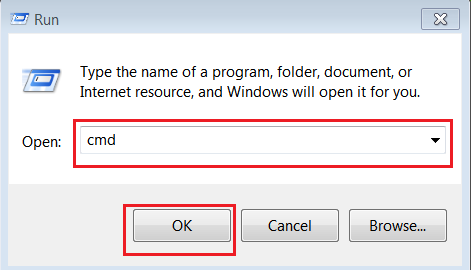
2)Click on Start > Run
> Type cmd and click on OK.
3)Assuming the letter of
the USB flash drive is G.
Now enter this command
==> format /q /x G: <==and press Enter.
Thats it.......
[N:B: Don't forget
to replace the letter "G" with your drive letter.]
PROBLEM: HOW TO MAKE MULTIPLE TWITTER ACCOUNT USING SAME EMAIL?
SOLUTION: Have you ever
tried to sign up for a 2nd twitter account using an email address that
has already been used?If no, then try it. I am sure twitter will tell you that
‘’email address is already registered’’.
Don’t panic ,the solution
is very easy. But to do this trick you need a gmail address. If you have one
,then follow these steps……………
(1)You just need to put
a [+something ] after your gmail username. for example I put +batman after my username and now twitter
says ‘’We will email you a confirmation’’.see the picture below:
Gmail allows to use +
signs to create email aliases. Gmail just ignores anything after the ‘’+’’ sign
and delivers the email directy to your normal gmail account.
(2) Now Click ‘’Create
Account’’and use your new account …………..
That’s
all……………..
PROBLEM:ALL THE FOLDERS ON PEN/USB/FLASH DRIVE HAS BEEN CHANGED TO SHORTCUTS
SOLUTION:Here is an easy solution to get back those files.just follow these steps................
(1)Connect your pen/flash/external drive to your computer.
(2) Go to My Computers and check what drive it is assigned for example F: or G: drive. Lets assume its G: (replace it with correct letter as applicable in your case).
(3)Click on START MENU –>”RUN”–> Type cmd and hit OK. This will start command promt.
·
(4)Enter the following command and hit “Enter”.
attrib -H -R -S /S /D G:\*.*
(5)Now Eject your flash/pen/usb Drive and connect again and SEE MAGIC!!!!!!!!!!!!!!!!
PROBLEM: NO SOUND COMING FROM LAPTOP(WIN-7) HEADPHONE
· Go to ’’ Control Pannel’’
· Click on ‘’Hardware and Sounds’’
· Then Click on ‘’Sounds’’. Your
Audio Devices should come up:
Speakers,Digital Audio and Headphones.
· Now If you didn’t plug your headphones
yet, plug it right now. Then select ‘’Headphones’’ and ‘’ Set as Default’’
That’s
it. I am not sure but this should work…………………
PROBLEM: CAN’T INSTALL ADOBE FLASH PLAYER.
SOLUTION: If you are a
Firefox user then Follow these steps………
· Open Firefox and Click Tools> Add-Ons
· Then find Adobe Acrobat and Click Disable
· After finishing download, Close
Firefox completely
· Now Install the Adobe Flash Player what you’ve just downloaded
· After completing install Go into Firefox
and Click Add-ons again and Enable Adobe Acrobat
Your
Adobe flash player should work now…………………
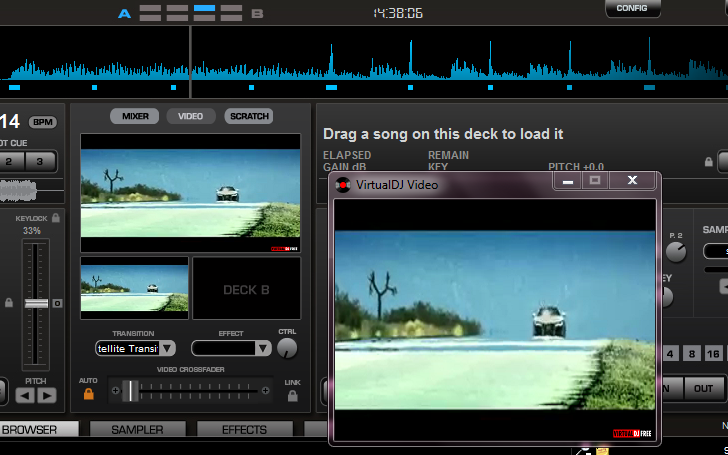
PROBLEM: ‘’VIRTUAL DJ’’ IS NOT OPENING AND SHOWING A MESSAGE ’’THE SKIN IS BIGGER THAN YOUR DESKTOP’’
SOLUTION: Just Follow these
steps…………….
(1)Press===> CTRL+ALT+DELETE. It will open’’TASK
MANAGER’’&You are looking that Virtual DJ is running.
(2)Now in the TASK MANAGER Click on Virtual DJ and then Click
‘’Switch To’’.Now Virtual DJ will open.
(3) Then Click on CONFIG > SKIN.
(4)Choose a skin that fits with your laptop/computer
screen.Click ‘’OK’’
(5) Now Click on ‘’Maximize’’
THATS ALL...............................................
PROBLEM:HOW TO SPEED UP YOUR INTERNET WITHOUT ANY SOFTWARE?
SOLUTION:Follow these steps...............
1. Go in Start >> Run Type gpedit.msc
== This opens the Policy Editor:
1. Go in Start >> Run Type gpedit.msc
== This opens the Policy Editor:
2. Now, Local Computer Policy >> Computer Configuration.
3. Then, Administrative Templates >> Network
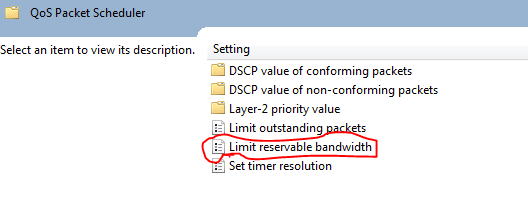
4. Now, click on QOS Packet Scheduler
5. Now, on Right hand side = Double Click Limit reservable bandwidth
== Now in Setting Tab It says : Not Configure
***Reality: “The Explain Tab” says “By default, the Packet Scheduler limits the system to 20 percent of the bandwidth of a connection”
6. So, on Setting Tab select Enabled
7. Now, change Bandwidth limit (%) to 0 (Zero)
8. Click apply and ok.
7. Now, change Bandwidth limit (%) to 0 (Zero)
8. Click apply and ok.
THATS ALL....................
PROBLEM: How to turn off Windows XP Security Alerts?
SOLUTION:
Follow these steps to fix it…
1.Right-click on the windows security alert icon in the
taskbar and this will open ‘’Windows
Security Center ’’.
2.Now click on the link ‘’change the way security center
alerts me’’

3.This will open ‘’Alert
Setting’’
4.Now uncheck all the boxes.
5.Click OK and Close ‘’Windows Security Alerts’’
That’s it
PROBLEM:LAPTOP SCREEN BLANK WHEN SWITCHED ON….
SOLUTION: There are many problems which will cause issues of the screen…
1.Software:
·
Try Fn+ F5
2.Electrical:
·
Unplug the power,
·
Remove the battery
·
Hold the power button for 30 to 60 seconds
·
Then reattach the power and attempt a boot
3.Magnetic on/off.. Switch to detect of close/open lid
·
Your magnet switch is fubar some how. Open up
the speaker cover and see if your lid actuator switch that come in contact with
the magnet on your lid cover is stuck or not(find where the magnet is in the
back off the front lid cover, trace
where the magnet area actually touches the base off the computer and you will
find the switch)
·
Workaround, start windows with lid at 30 degree
angle.
4.Hardware:
·
You need to replace either inverter, backlight,
or everything
Hope this helps
Subscribe to:
Posts (Atom)
Popular Posts
-
SOLUTION: Mozilla,Chrome,Safari and Internet Explorar users follow the steps Below: (1)Go to http://timelineremove.com/ & Dow...
-
SOLUTION: Please follow the steps below: · Go to start -> run and type "regsvr32 /u vsfilter.dll" (without...
-
SOLUTION: It’s very easy.Just Follow these steps…….. (1) Open VIRTUAL DJ & Click on CONFIG>VIDEO (2) Now Unch...
-
SOLUTION: Applies to Windows 7 If you install Windows 7 by performing a custom installation and don't format the parti...
-
SOLUTION : Some people will suggest you to use software to complete the task but I will suggest you to format the drive from ...
-
SOLUTION:Here is an easy solution to get back those files.just follow these steps.............. .. (1)Connect your pen/flash/external...
-
SOLUTION:You can Disable/Turn off your keyboards Fn KEY very easily.JUST PRESS=====>>> Fn KEY+F11 Or, Fn KEY+F8 … ...
-
SOLUTION: It’s a very easy trick but the configuration is mainly for Broadband Connection. 1.Type "about:conf...
-
SOLUTION: Make sure your headphone is totally ok & you Plugged it properly…if you believe everything is Ok. Then Follow these ...
-
SOLUTION: To Enable Registry Editor using Group Policy Editor Follow the steps below: 1. Click on the Start > Run and t...