UA-47307131-1
Showing posts with label COMPUTER & HARDWARE.. Show all posts

PROBLEM: “Regedit” is disabled by the administrator


SOLUTION: To Enable Registry Editor using Group Policy Editor Follow the steps below:

1. Click on the Start > Run and type ”gpedit.msc” on the field (without “).


2. Navigate to:
                       - User Configuration 
                       - Administrative Templates- 
                        - System. 


3. On the option: Prevent access to registry editing tools


4. Click Disabled and click on the OK button to save settings.


5. Now Reboot your computer.


That’s all…

PROBLEM: How do I remove the Windows.old folder?


SOLUTION: Applies to Windows 7

If you install Windows 7 by performing a custom installation and don't format the partition during the installation process, files that were used in your previous version of Windows are stored in the Windows.old folder. The type of files in this folder depends on your computer. After youve used Windows 7 for a whilefor example, one or two weeksand youre confident that your files and settings are back to where you want them to be, you can safely reclaim disk space by using Disk Cleanup to delete the Windows.old folder.

 
(1) Open Disk Cleanup by clicking the Start button. In the search box, type Disk Cleanup, and then, in the list of results, click Disk Cleanup.
If you're prompted to choose a drive, click the drive you just installed Windows on, and then click OK.


(2)   In the Disk Cleanup dialog box, on the Disk Cleanup tab, click Clean up system files.
If you're again prompted to choose a drive, click the drive you just installed Windows on, and then click OK.


(3)   Select the Previous Windows installation(s) check box, and any other check boxes for the files you want to delete, and then click OK.

(4)    In the message that appears, click Delete Files.

[N.B: Before you use Disk Cleanup, make sure that all of your files and settings are in Windows 7 where you expect them to be. Deleting the Windows.old folder can’t be undone]


PROBLEM: Windows Can’t Format My Pendrive/Memory Card And Showing That “Windows was unable to complete the format”


SOLUTION: Some people will suggest you to use software to complete the task but I will suggest you to format the drive from command prompt. It’s a very easy and simple trick. You don’t need any software for it.

To format a USB flash drive/Memory Card from command prompt, follow the below procedure:

1)Connect the USB flash drive to your PC/Laptop.

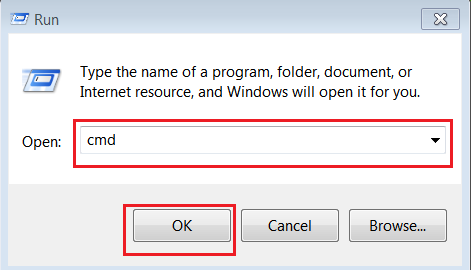
2)Click on Start > Run > Type cmd and click on OK.


3)Assuming the letter of the USB flash drive is G.
Now enter this command ==> format /q /x G: <==and press Enter.

Thats it.......
[N:B: Don't forget to replace the letter "G" with your drive letter.]

PROBLEM:ALL THE FOLDERS ON PEN/USB/FLASH DRIVE HAS BEEN CHANGED TO SHORTCUTS


SOLUTION:Here is an easy solution to get back those files.just follow these steps................

(1)Connect your pen/flash/external drive to your computer.

 (2) Go to My Computers and check what drive it is assigned for example F: or G: drive. Lets assume its G: (replace it with correct letter as applicable in your case).

(3)Click on START MENU –>”RUN”–> Type cmd and hit OK. This will start command promt.    

·         


(4)Enter the following command and hit “Enter”.
attrib -H -R -S /S /D G:\*.*


N:B: In the above command, alphabet G represents the drive letter for your flash/Pen drive. You may need to change it as it shows in your computer.

(5)Now Eject your flash/pen/usb Drive and connect again and SEE MAGIC!!!!!!!!!!!!!!!!

PROBLEM: NO SOUND COMING FROM LAPTOP(WIN-7) HEADPHONE


 SOLUTION: Make sure your headphone is totally ok & you Plugged it properly…if you believe everything is Ok. Then Follow these Steps…….
·      Go to ’’ Control Pannel’’
·      Click on ‘’Hardware and Sounds’’
·      Then Click on ‘’Sounds’’. Your  Audio Devices  should come up: Speakers,Digital Audio and Headphones.
·      Now If you didn’t plug your headphones  yet, plug it right now. Then select  ‘’Headphones’’ and ‘’ Set as Default’’
That’s it. I am not sure but this should work…………………

PROBLEM: CAN’T TURN OFF LAPTOPS FUNCTION KEY(Fn key)…


SOLUTION:You can Disable/Turn off  your keyboards Fn KEY very easily.JUST PRESS=====>>> Fn KEY+F11     Or, Fn KEY+F8 …


Hope this helps…………..

PROBLEM:LAPTOP SCREEN BLANK WHEN SWITCHED ON….


SOLUTION: There are many problems which will cause issues of the screen…

1.Software:
·         Try Fn+ F5
2.Electrical:
·         Unplug the power,
·         Remove the battery
·         Hold the power button for 30 to 60 seconds
·         Then reattach the power and attempt a boot
3.Magnetic on/off.. Switch to detect of close/open lid
·         Your magnet switch is fubar some how. Open up the speaker cover and see if your lid actuator switch that come in contact with the magnet on your lid cover is stuck or not(find where the magnet is in the back  off the front lid cover, trace where the magnet area actually touches the base off the computer and you will find the switch)
·         Workaround, start windows with lid at 30 degree angle.
4.Hardware:
·         You need to replace either inverter, backlight, or everything

Hope this helps

Popular Posts